Guide · updated 17 October 2026
How your Letizgalerie works
From purchase to ZIP download: the current steps for your gallery, admin dashboard, QR invitation, seating chart and anniversary time capsule.
Step 1
Buy a gallery
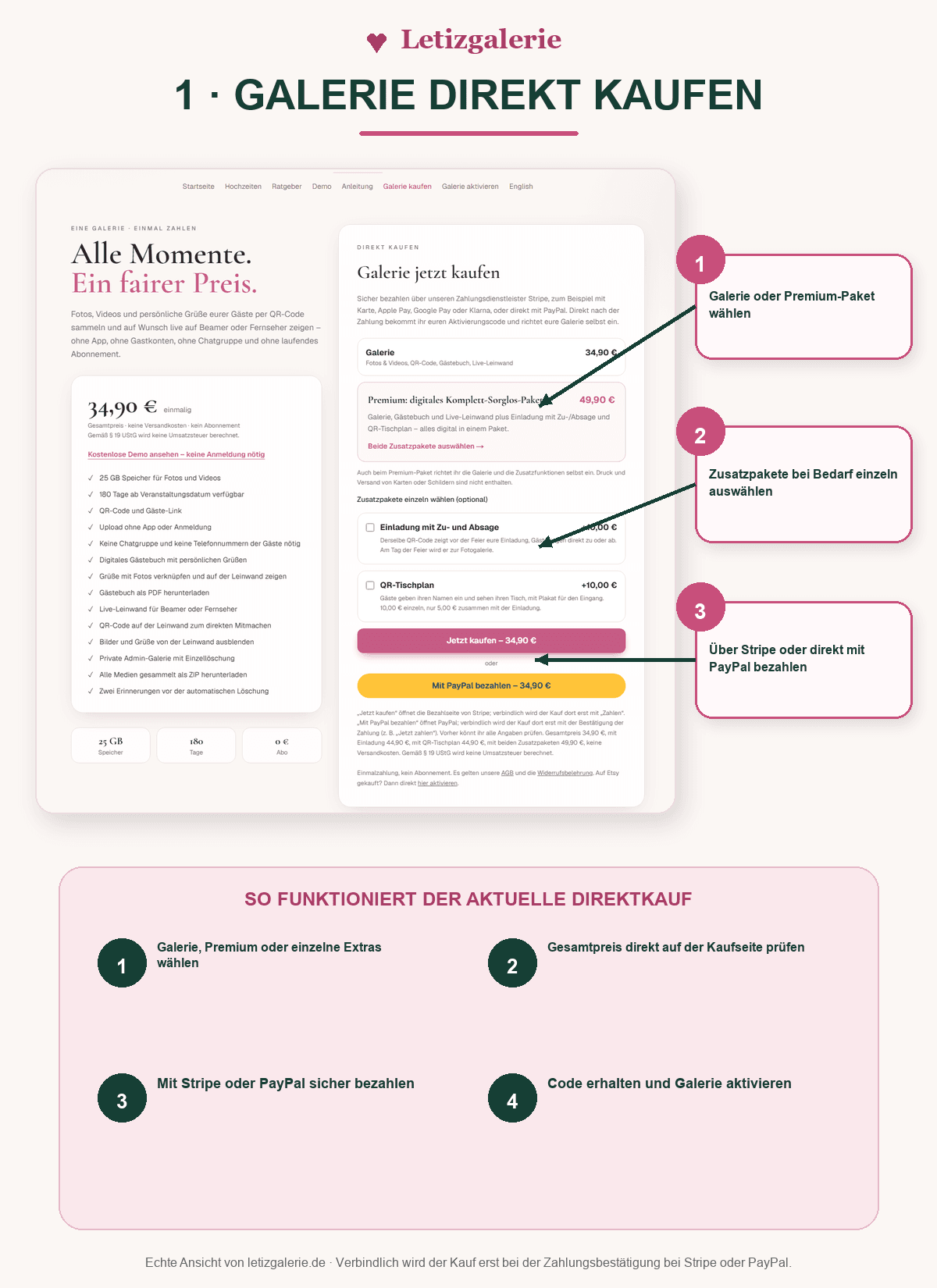
Choose a gallery and any add-ons, then check the total price. Pay using one of the available payment methods. After purchase, you receive a one-time code by e-mail.
Step 2
Activate your gallery
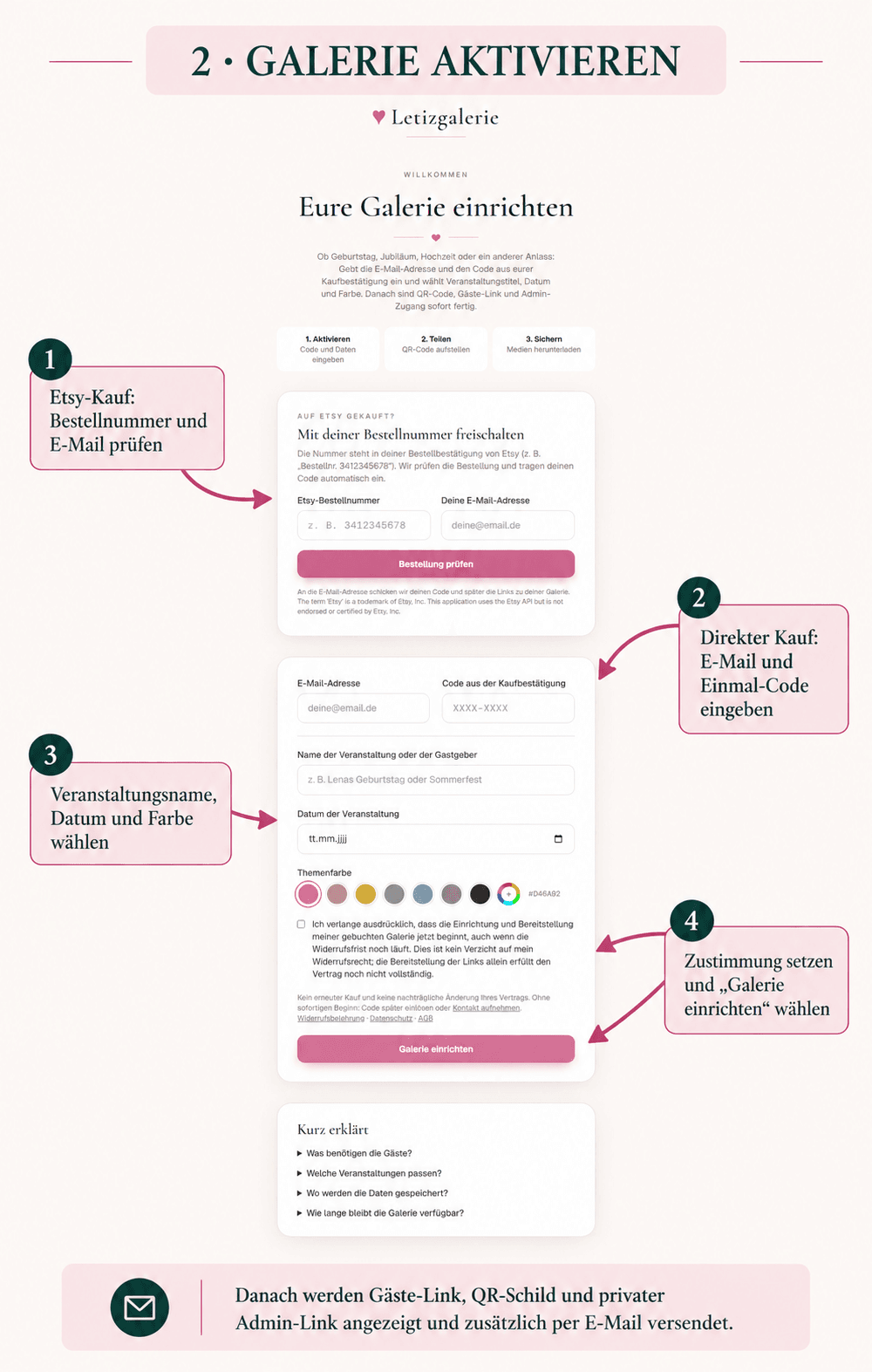
Enter the e-mail address and code from your purchase confirmation. Choose the event name, date and colour, then confirm immediate setup. Your private admin link and expiry date are shown and sent by e-mail.
Step 3
Manage your admin dashboard
The dashboard contains QR signs, the guest link, live wall, welcome screen, guestbook, photo challenge and media management. The illustration shows an excerpt; further sections depend on your package.
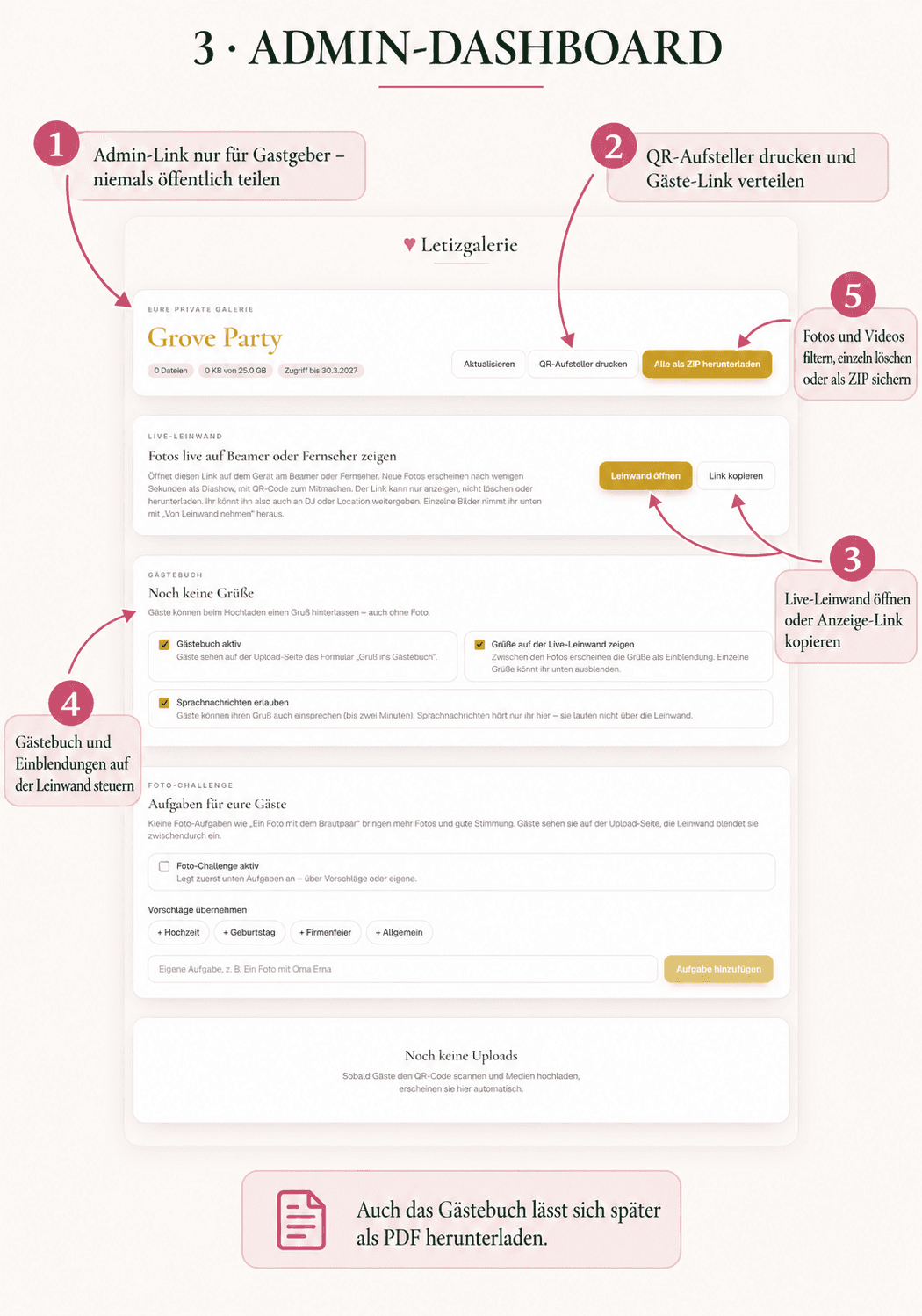
- Share the guest link and QR signs; keep the admin link private.
- Set up a personal welcome with text and an optional image, then check it with Open preview.
- Manage the guestbook and voice messages; optionally add photo challenges from presets or write your own.
- Filter photos and videos, delete items or remove them from the live wall, and download everything as a ZIP before expiry.
Add-on or demo
Manage invitations and RSVPs
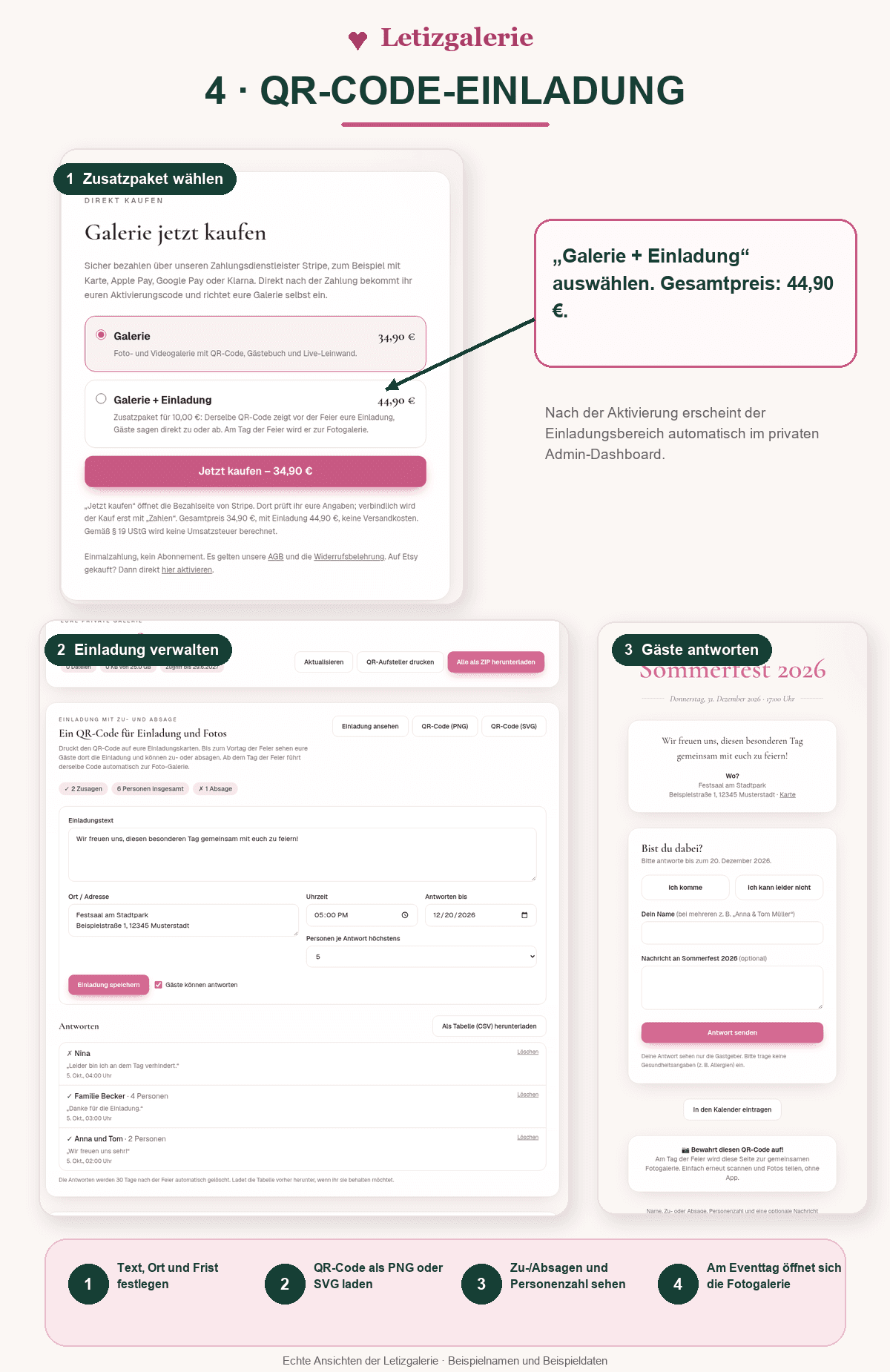
With the invitation add-on or in a demo, set invitation text, venue, time, reply deadline and group size in the dashboard. View RSVP responses there and export them as CSV. In a paid gallery, the same QR code opens the photo gallery on the event day. In a demo, it opens the invitation first; guests can select the invitation, seating chart or photo upload at any time.
Add-on or demo
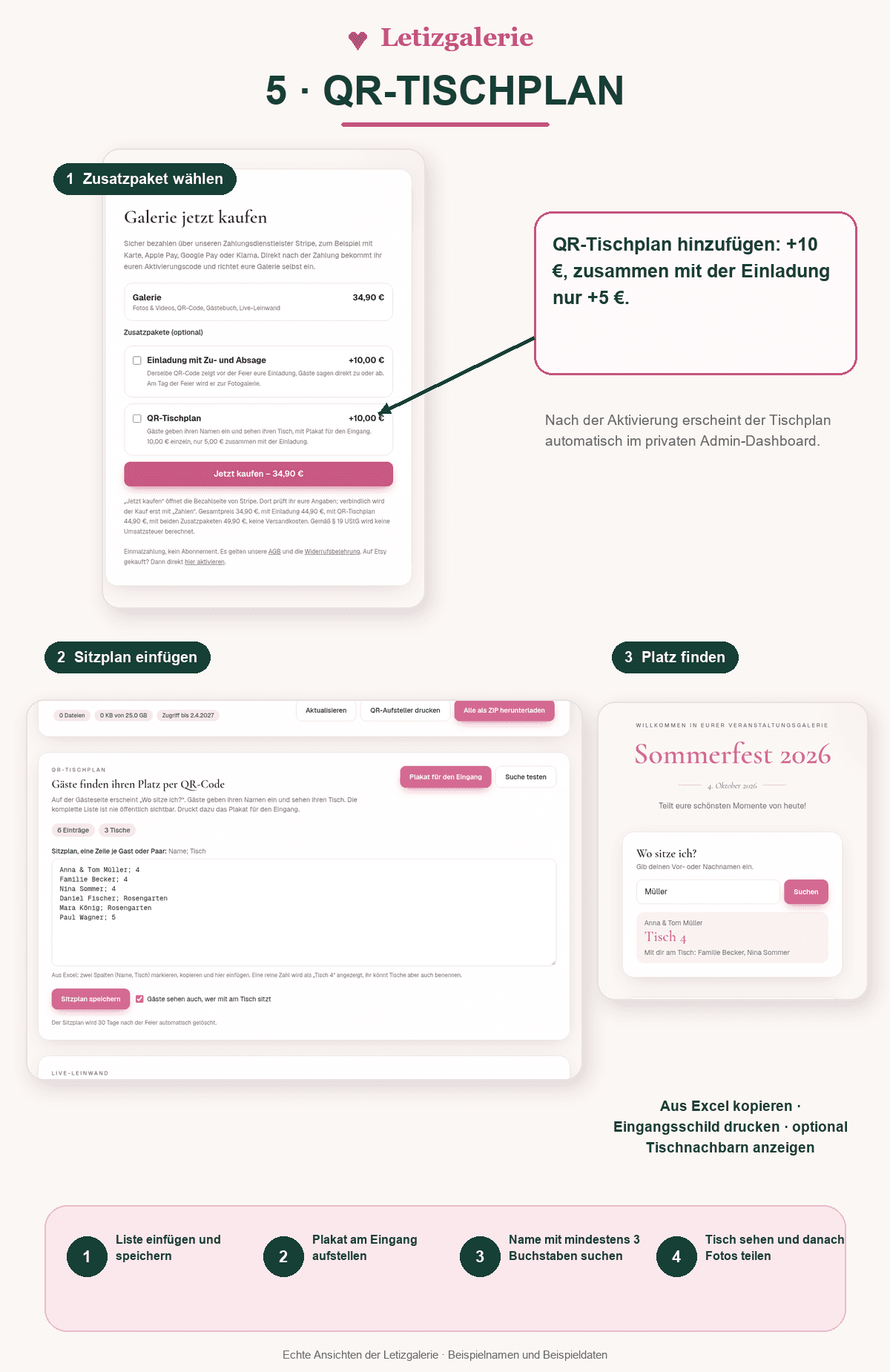
Set up the QR seating chart
With the seating chart add-on or in a demo, paste the seating list line by line or from Excel. Each row contains a name and table. You can also show tablemates. Guests search their name and see their table. In a demo, they select the Seating chart view first.
Optional anniversary package
Keep memories in your time capsule
Before the regular gallery expires, choose up to 30 photos in the admin dashboard and optionally leave a message to your future selves. Guests can seal their own photos and messages through the same QR code. Until opening day, you only see the number of surprises, not their contents.
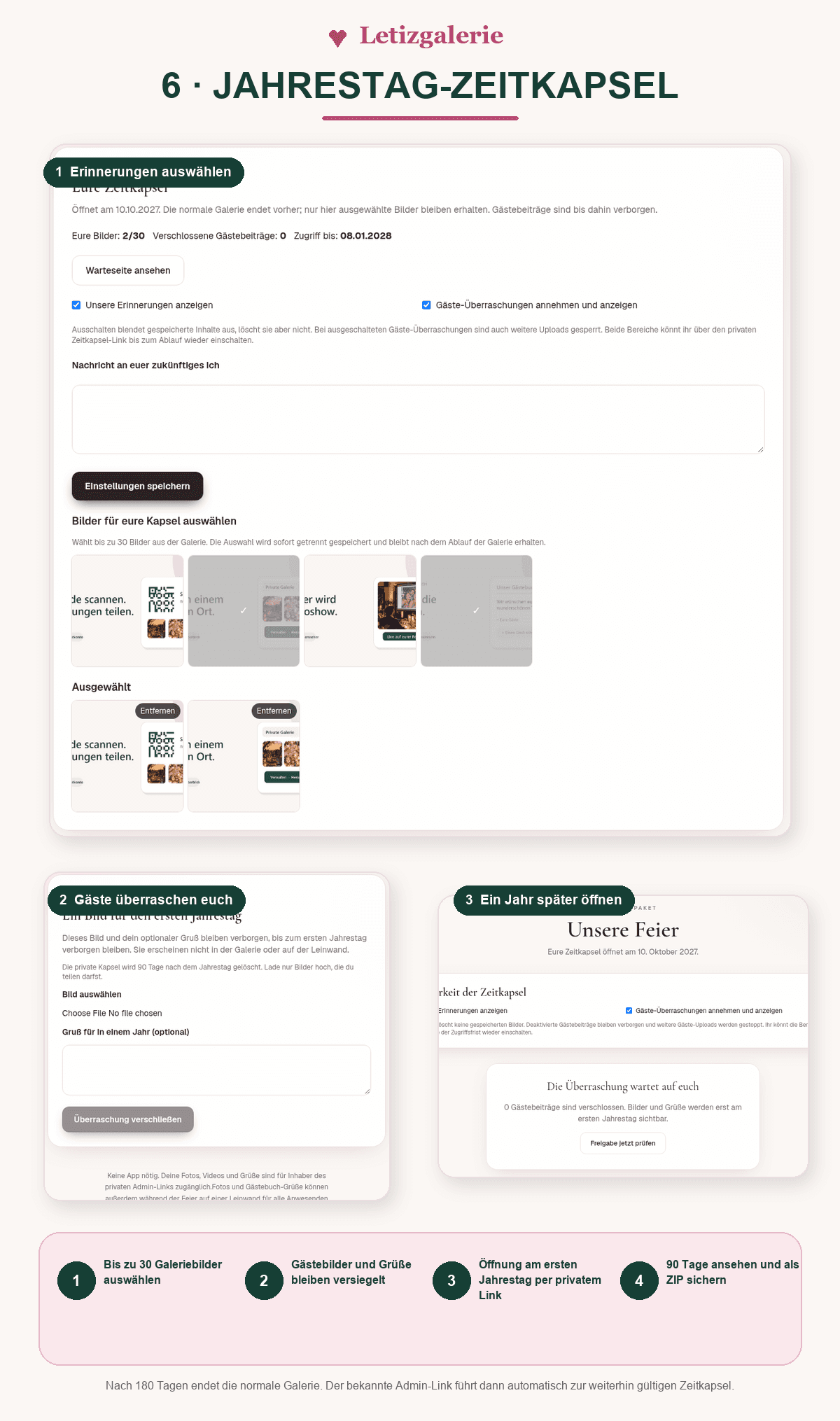
- Guests can contribute from the event day until seven days afterwards. Their submissions do not appear in the gallery or on the live wall.
- The capsule opens on the first anniversary of the event. You receive an e-mail and can use the private waiting page at any time.
- After 180 days only the regular gallery is deleted. The existing admin link then redirects to the still-active time capsule.
- Once opened, the capsule remains available for 90 days. Download it as a ZIP before it is deleted.